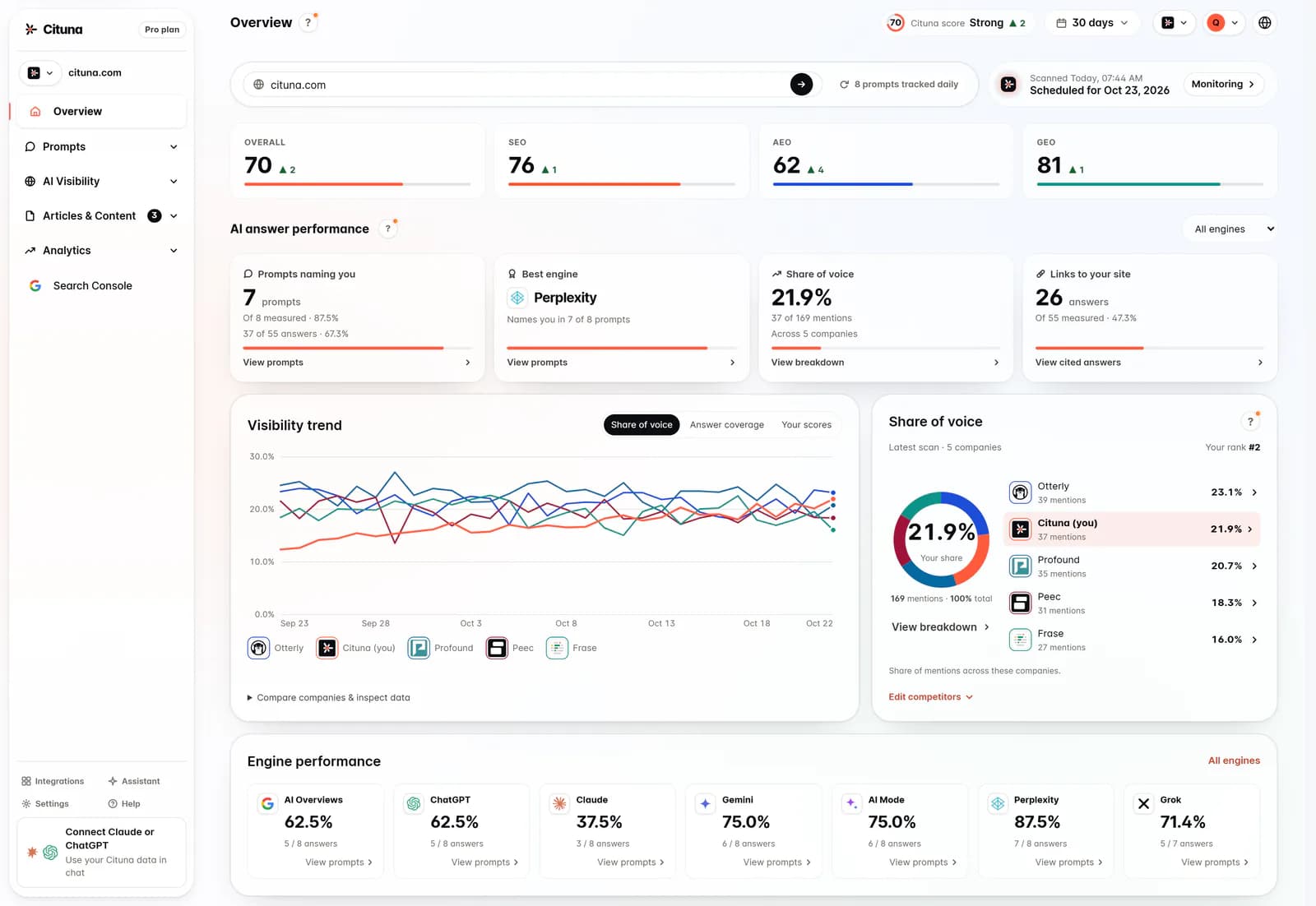
If your blog is a Webflow CMS collection, Cituna can write straight into it. It finds the questions buyers ask that AI engines answer without you, writes the articles from your own search data, and creates each one as an item in your blog collection, so your collection template page shows it like any other post. Collections differ, so Cituna reads your collection’s fields to learn which one holds the body, the main image, the date and the summary, and you can correct anything it got wrong. Articles can arrive as drafts for review in Webflow. If your posts live somewhere other than Webflow, the webhook destination hands you the article to place yourself.
What this assumes
1. Generate a Site API token
In your Webflow workspace, click the gear icon on the site to open its settings, choose Apps & integrations, and scroll to API access. Click Generate API token and name it Cituna.
Give it read and write access to CMS and Assets, and read access to Sites, then copy the token. CMS write lets Cituna create and update items, Assets write lets it upload each article’s main image, and Sites read lets it find the site and its collections. If your collection has no image field, Assets is not needed.
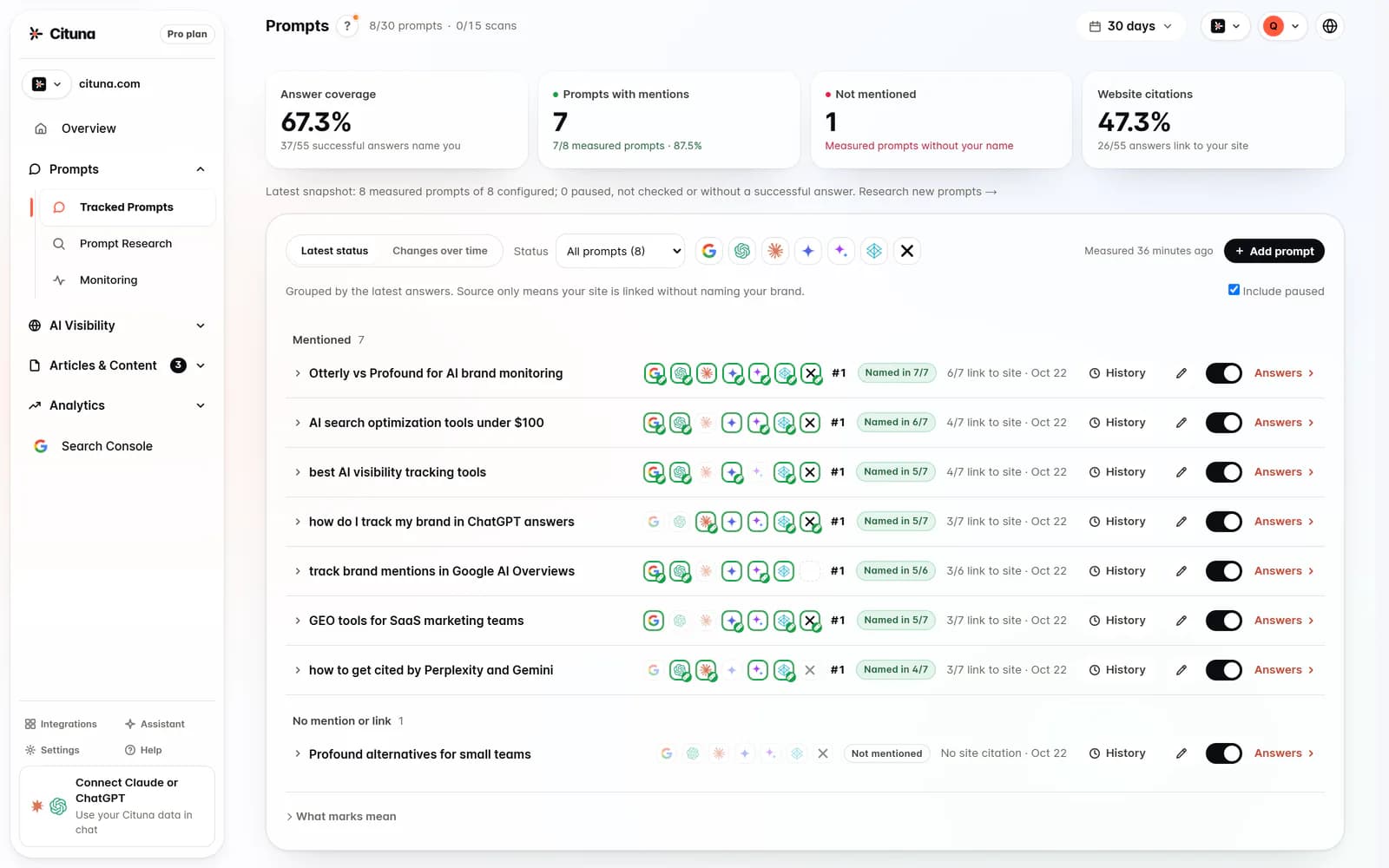
2. Connect the site in Cituna
Choose the brand in the top bar, open Integrations and click Connect on the Webflow card. Paste the token under API token. Leave Public article URL prefix blank to use your brand’s domain plus the collection’s path, such as https://example.com/blog, or enter the address your posts appear under. It must be on the brand’s own site: it is where links between articles point.
Click Connect Webflow. Cituna finds the collection that holds your posts, reads its fields and checks the token’s permissions, saving nothing to your site. If several collections could be your blog, pick yours under Collection for posts and click Connect Webflow again.
3. Check the field mapping
The card says which fields each article writes: the title and slug in Webflow’s own Name and Slug fields, the body in a rich text field, the hero in an image field, and the summary, date, SEO title and tags where your collection has fields for them. If one is wrong, click Edit fields, pick the right field from each list and click Save.
If your collection has a required field Cituna cannot fill, such as a required author reference, connecting stops and names it. Make it optional in Webflow or choose another collection, since Webflow would otherwise refuse every article.
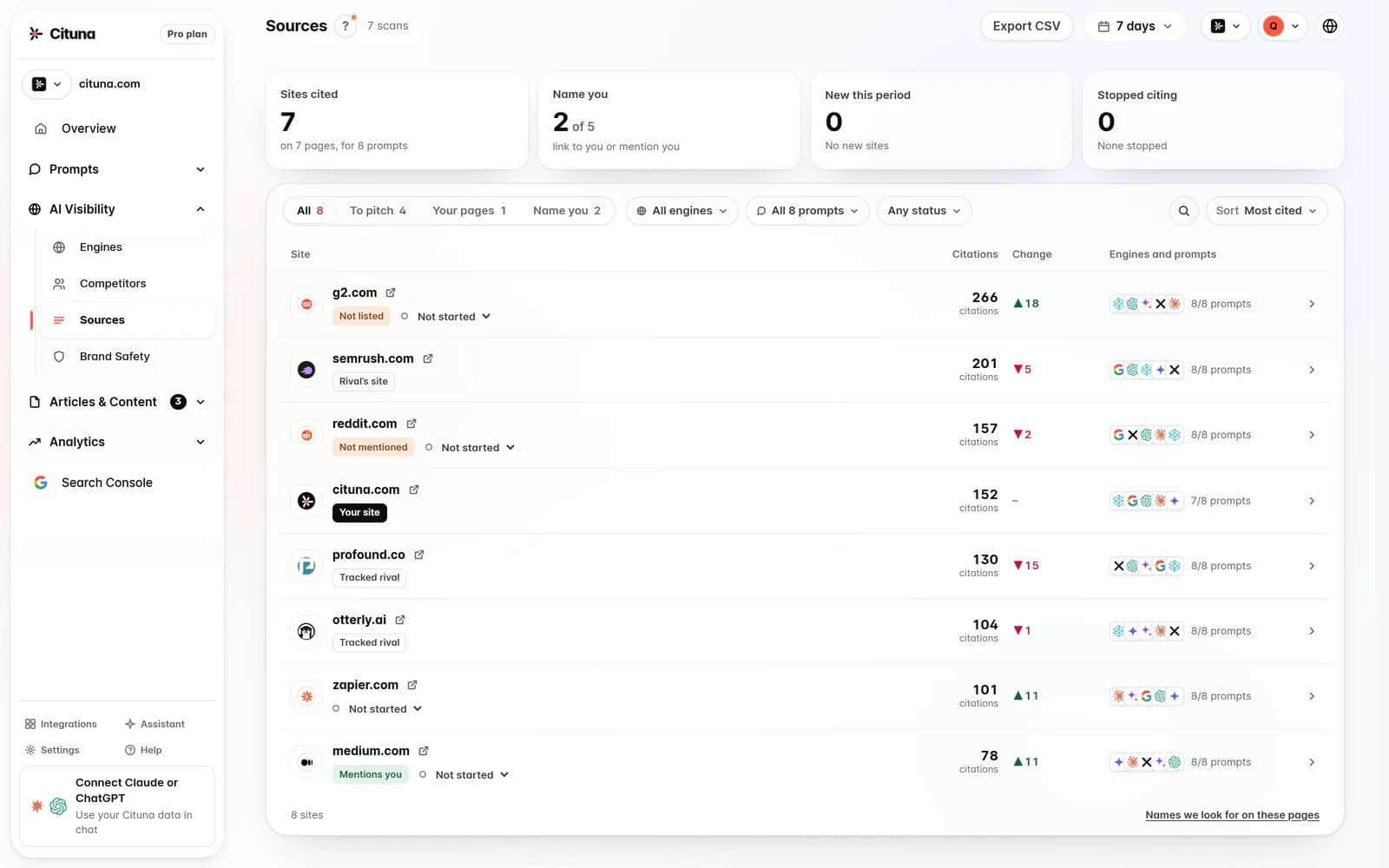
4. Choose drafts or publishing, then turn on the daily article
Open Articles. Under Where should the articles go?, click Other, then Webflow. Under Who approves them?, choose whether you review each article first or let Cituna publish automatically. The daily articles guide compares the choices.
Then, under Start writing, turn on Write articles every day. Connecting a destination does not start anything by itself.
Troubleshooting
The article is in Webflow but not on my site.
It is still a draft item, which is what reviewing first does, or the site has not been published since the collection changed. Publish the item or the site in Webflow.
Will Cituna overwrite an edit made in Webflow?
Not silently. Before an update, Cituna compares the fields it writes with what it last sent. If someone changed them in Webflow, automatic updates leave the item alone. Fields it does not write, such as author, category or Featured, are never touched.
Does sending the same article twice create a duplicate?
No. Before creating an item, Cituna looks up the article’s slug in the collection. The item its own earlier attempt made within the last day, with the same title, is updated instead. Any other item on that slug is never overwritten, and a draft is never written into a published item.
Webflow says the site reached its CMS item limit.
Each Webflow site plan allows a set number of CMS items. Upgrade the site plan or delete items you no longer need, then send the article again.
Drafted with AI assistance from our own research and Search Console data, and reviewed by Rahul A before publishing. Rules and prices change; check the linked official source before you act.