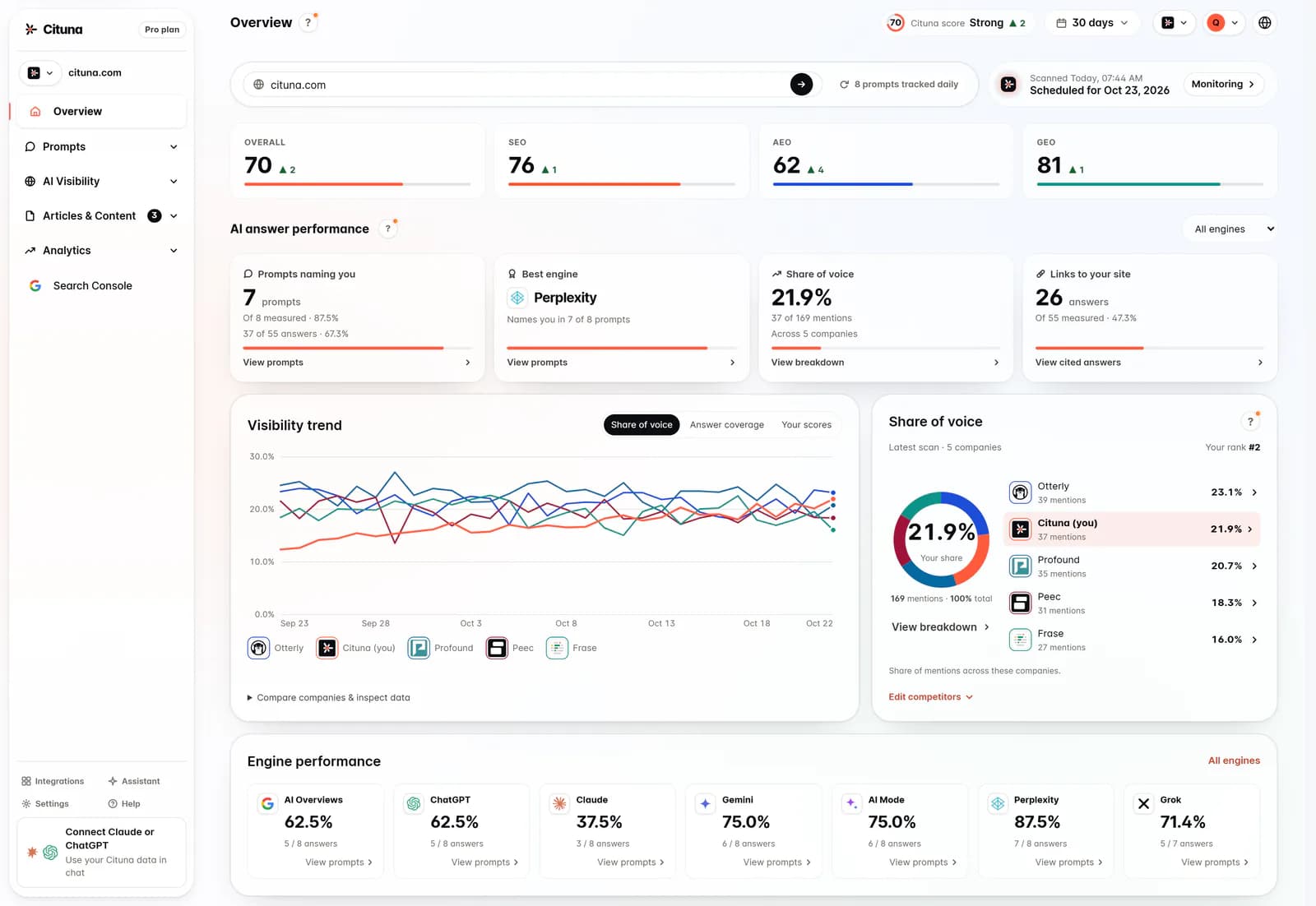
If your blog posts live in Contentful, Cituna can write straight into your space. It finds the questions buyers ask that AI engines answer without you, writes the articles from your own search data, and creates each one as an entry of your blog content type, so your site renders it with the template it already has. Content models differ, so Cituna reads your content type to learn which field holds the title, the slug, the body, the image and the SEO fields, and you can correct anything it got wrong. Articles can arrive as drafts for review in Contentful. If your posts live somewhere other than Contentful, the webhook destination hands you the article to place yourself.
What this assumes
1. Find your space ID and environment
In Contentful, open your space, go to Settings, then General settings, and copy the space ID. It is also the part after /spaces/ in the address bar.
Note the environment your site reads its entries from, usually master. Cituna uses master when you leave the field blank.
2. Create a personal access token
Go to Settings, then CMA tokens, and click Create personal access token. Name it Cituna and copy it before you close the dialog: Contentful shows it once.
A personal access token has the same access as the user who created it, so create it from an account whose role can edit and publish entries in the space. When your blog type already has an entry, a role that cannot edit it is refused at connect with a message saying so.
3. Connect the space in Cituna
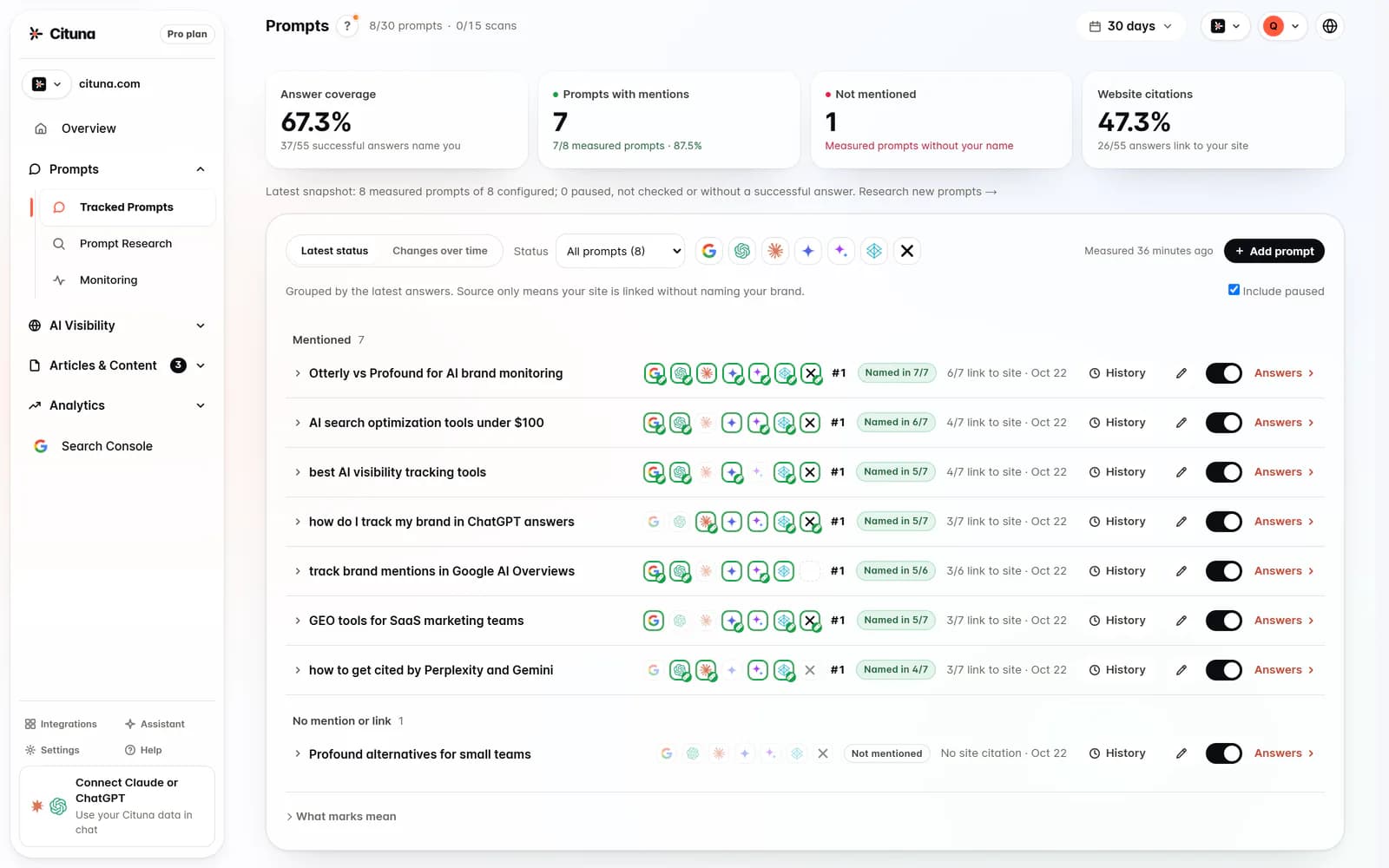
Choose the brand in the top bar, open Integrations and click Connect on the Contentful card. Enter the Space ID, the Environment, the Personal access token and, under Public article URL prefix, the address your posts appear under, such as https://example.com/blog. That address must be on the brand’s own site: it is where links between articles point.
Click Connect Contentful. Cituna finds the content type that holds your posts and learns its fields. When that type already has an entry, it checks that the token may edit it, without changing anything. If several types could be your blog, pick yours under Content type for posts and click Connect Contentful again.
4. Check the field mapping
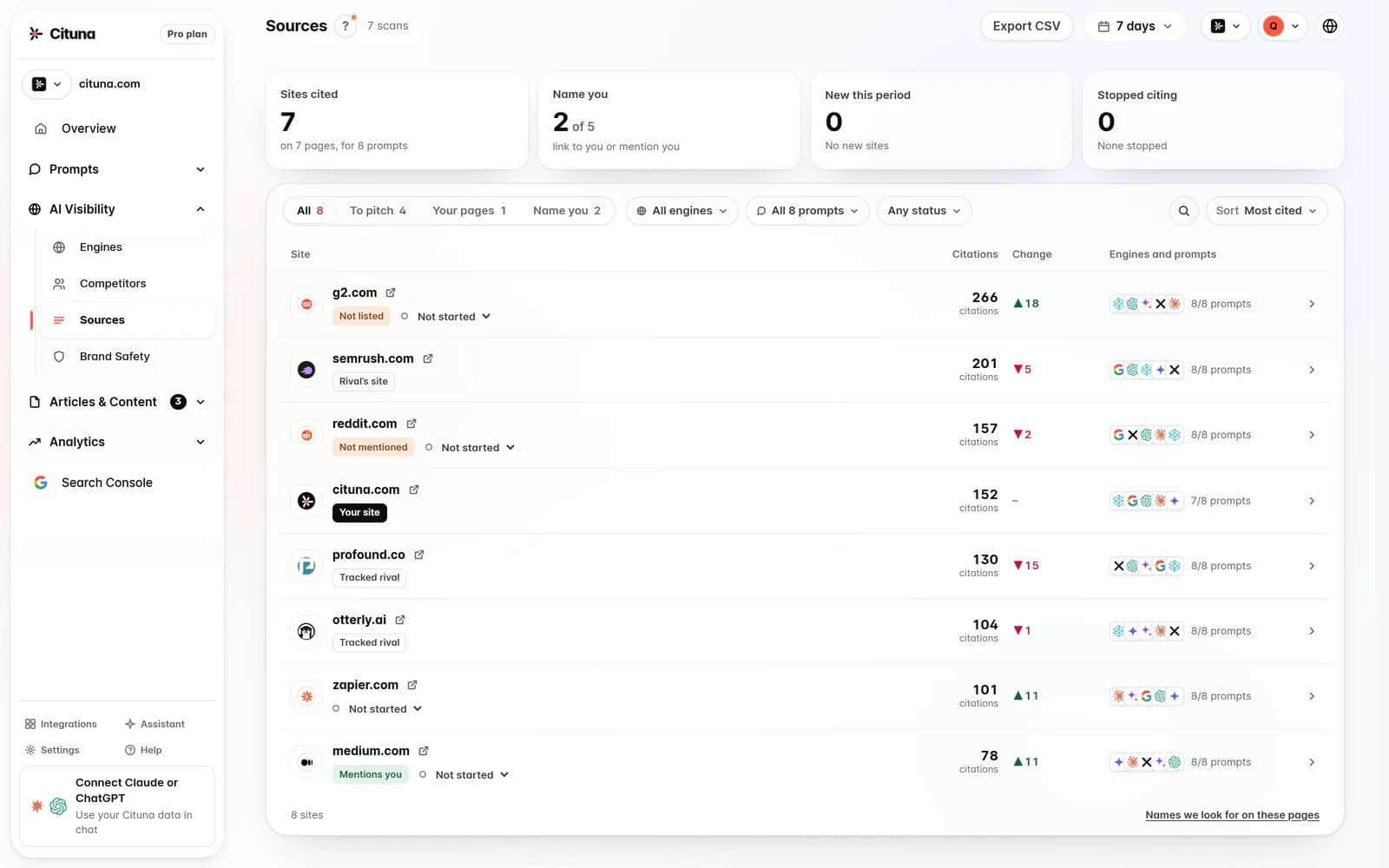
The card says which fields each article writes. If one is wrong, click Edit fields, pick the right field in each list and click Save. Each list only offers fields of a kind that fits, and a field set to Not written is never touched. Tick Article URLs on this site end with a slash there if yours do.
The body goes in as Rich Text, with headings, lists and links, using only what your Rich Text field allows. If your content type keeps the body in a Long text field, it gets Markdown instead.
5. Choose drafts or publishing, then turn on the daily article
Open Articles. Under Where should the articles go?, click Other, then Contentful. Under Who approves them?, choose I review each one first, then Review in Contentful to receive each article as a draft entry you publish in Contentful, or Review in Cituna to send nothing until you approve it. Publish automatically publishes each entry as soon as it is written. The daily articles guide compares the three.
Then, under Start writing, turn on Write articles every day. Connecting a destination does not start anything by itself.
Troubleshooting
The article is in Contentful but not on my site.
It is still a draft, which is what Review in Contentful does, or your site reads a different content type or environment. Publish the entry in Contentful, or open Edit fields and set the content type your blog actually queries.
Contentful saved the draft but refused to publish it.
Contentful checks required fields and validations when an entry is published. The message names the field: fill it in on the entry and publish it in Contentful. When it is a text field Cituna can write, map it under Edit fields so every article fills it.
Will Cituna overwrite an edit made in Contentful?
Not silently. Before an update, Cituna compares the fields it writes with what it last sent. If someone changed them in Contentful, or unpublished, archived or deleted the entry, automatic updates leave it alone, and Update on Contentful asks first. Fields it does not write, such as author and related posts, are never touched.
Does sending the same article twice create a duplicate?
No. Each article has a fixed entry ID built from its slug, cituna- and the slug, so a retry or a re-send updates the same entry rather than adding a second one. Its image is uploaded once and reused.
Drafted with AI assistance from our own research and Search Console data, and reviewed by Rahul A before publishing. Rules and prices change; check the linked official source before you act.